Installation
Install the Vercel Deployment Monitor statusline using the Claude Code Templates CLI:
npx claude-code-templates@latest --setting statusline/vercel-deployment-monitorThis command automatically installs the statusline configuration in your project's .claude/settings.json. You will need to set two environment variables before it starts working.
The Problem: Blind Deployments
If you deploy to Vercel, you know the routine: push code, switch to your browser, open the Vercel dashboard, wait for the build to finish, and then check if it succeeded. This context-switching breaks your flow every single time.
Worse, if you are working in Claude Code and asking it to make changes to a production project, you have no visibility into whether your last deployment succeeded or failed without leaving the terminal. You might be building on top of broken code without realizing it.
The Vercel Deployment Monitor statusline solves this by bringing real-time deployment status directly into your Claude Code terminal. No tab switching. No dashboard refreshing. Just a persistent status indicator that updates automatically.
What You Get
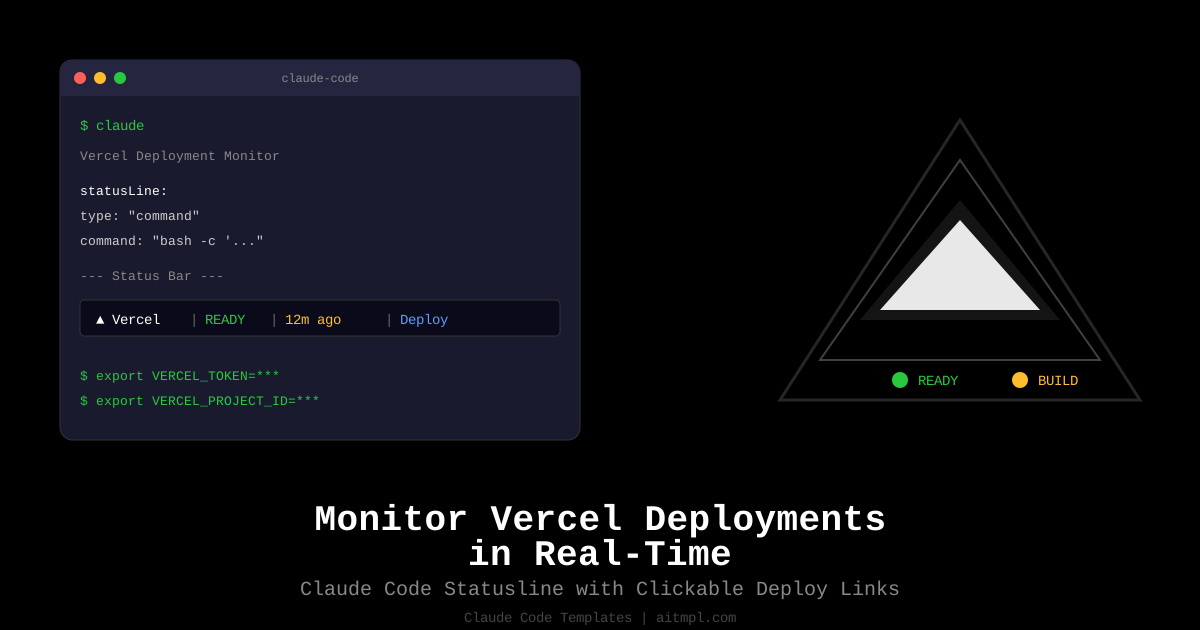
Once installed, a status bar appears at the bottom of your Claude Code session showing four pieces of information:
| Element | Example | What It Shows |
|---|---|---|
| Platform indicator | ▲ Vercel |
Confirms the Vercel integration is active |
| Build status | READY / BUILDING / ERROR |
Current state of the latest deployment |
| Time elapsed | 12m ago |
Minutes since the last deployment was created |
| Deploy link | Deploy (clickable) |
OSC 8 hyperlink you can Cmd+click to open |
The status icons change based on deployment state:
| State | Icon | Meaning |
|---|---|---|
| READY | checkmark | Deployment is live and serving traffic |
| BUILDING | spinner | Build is in progress |
| QUEUED | hourglass | Deployment is waiting to start |
| ERROR | cross | Build failed, needs attention |
Prerequisites
Before the statusline can query Vercel, you need two pieces of information:
1. Vercel API Token
Generate a token at vercel.com/account/tokens. Create a token with read-only scope for maximum security.
export VERCEL_TOKEN=your_token_here2. Vercel Project ID
Find your project ID in the Vercel dashboard under Project Settings > General. It is the alphanumeric string shown under "Project ID".
export VERCEL_PROJECT_ID=your_project_id_here~/.bashrc, ~/.zshrc, or a .env file loaded by your shell.
How It Works
The statusline is a command-type statusline that runs a bash one-liner. Here is the logic broken down step by step:
# 1. Read workspace context from stdin
input=$(cat)
DIR=$(echo "$input" | jq -r ".workspace.current_dir")

# 2. Query the Vercel API for the latest deployment
DEPLOY_DATA=$(curl -s \
  -H "Authorization: Bearer $VERCEL_TOKEN" \
  "https://api.vercel.com/v6/deployments?projectId=$VERCEL_PROJECT_ID&limit=1")

# 3. Extract deployment state, URL, and creation time
STATE=$(echo "$DEPLOY_DATA" | jq -r ".deployments[0].state // empty")
FULL_URL=$(echo "$DEPLOY_DATA" | jq -r ".deployments[0].url // empty")
CREATED=$(echo "$DEPLOY_DATA" | jq -r ".deployments[0].created // empty")

# 4. Calculate time since deployment
AGO=$(( ($(date +%s) - $CREATED/1000) / 60 ))
TIME_AGO="${AGO}m ago"

# 5. Map state to status icon
case "$STATE" in
  READY)    STATUS_ICON="checkmark" ;;
  BUILDING) STATUS_ICON="spinner"   ;;
  QUEUED)   STATUS_ICON="hourglass" ;;
  ERROR)    STATUS_ICON="cross"     ;;
esac

# 6. Output with OSC 8 clickable hyperlink
echo "Vercel | $STATUS_ICON $STATE | $TIME_AGO | Deploy"
The key feature is the OSC 8 hyperlink in the output. This is a terminal escape sequence that makes the "Deploy" text clickable in supported terminals (iTerm2, Hyper, Windows Terminal, and most modern terminal emulators). Cmd+click (or Ctrl+click) opens the deployment URL directly in your browser.
The Full Configuration
Here is the complete .claude/settings.json configuration that gets installed:
{
  "statusLine": {
    "type": "command",
    "command": "bash -c 'input=$(cat); DIR=$(echo \"$input\" | jq -r \".workspace.current_dir\"); DEPLOY_DATA=$(curl -s -H \"Authorization: Bearer $VERCEL_TOKEN\" \"https://api.vercel.com/v6/deployments?projectId=$VERCEL_PROJECT_ID&limit=1\" 2>/dev/null); if [ -n \"$DEPLOY_DATA\" ] && [ \"$DEPLOY_DATA\" != \"null\" ]; then STATE=$(echo \"$DEPLOY_DATA\" | jq -r \".deployments[0].state // empty\"); FULL_URL=$(echo \"$DEPLOY_DATA\" | jq -r \".deployments[0].url // empty\"); CREATED=$(echo \"$DEPLOY_DATA\" | jq -r \".deployments[0].created // empty\"); if [ -n \"$CREATED\" ] && [ \"$CREATED\" != \"null\" ]; then AGO=$(( ($(date +%s) - $CREATED/1000) / 60 )); TIME_AGO=\"${AGO}m ago\"; else TIME_AGO=\"unknown\"; fi; case \"$STATE\" in READY) STATUS_ICON=\"check\";; BUILDING) STATUS_ICON=\"spinner\";; QUEUED) STATUS_ICON=\"hourglass\";; ERROR) STATUS_ICON=\"cross\";; *) STATUS_ICON=\"unknown\";; esac; else STATE=\"unavailable\"; FULL_URL=\"\"; TIME_AGO=\"unknown\"; STATUS_ICON=\"unknown\"; fi; echo \"Vercel | $STATUS_ICON $STATE | $TIME_AGO | Deploy\"'"
  }
}Dependencies
The statusline relies on two command-line tools that are standard on most development machines:
| Tool | Purpose | Install |
|---|---|---|
curl |
Makes HTTP requests to the Vercel API | Pre-installed on macOS and most Linux distributions |
jq |
Parses JSON responses from the API | brew install jq or apt install jq |
Troubleshooting
If the statusline shows "unavailable", check these common issues:
Environment variables not set
# Verify your variables are exported
echo $VERCEL_TOKEN
echo $VERCEL_PROJECT_ID
Both should print non-empty values. If they are blank, add the exports to your shell profile and restart your terminal.
Invalid token or project ID
# Test the API directly
curl -s -H "Authorization: Bearer $VERCEL_TOKEN" \
  "https://api.vercel.com/v6/deployments?projectId=$VERCEL_PROJECT_ID&limit=1" | jq .
You should see a JSON response with a deployments array. If you get an error, verify the token has not expired and the project ID is correct.
jq not installed
# macOS
brew install jq

# Ubuntu/Debian
sudo apt install jq

# Verify installation
jq --version
Combining with Other Statuslines
Claude Code supports multiple statuslines. You can combine the Vercel monitor with other statuslines like Git branch indicators, test runners, or system monitors. Each statusline component adds its output to the status bar, giving you a comprehensive dashboard at a glance.
Browse the full collection of statuslines in the component catalog to find others that complement your workflow.
Conclusion
The Vercel Deployment Monitor statusline eliminates the need to context-switch between your terminal and browser when deploying. With a single install command and two environment variables, you get persistent visibility into your deployment pipeline directly inside Claude Code.
The clickable deploy link is particularly useful: when a build finishes, you can Cmd+click to open the live deployment URL instantly. No more hunting through browser tabs or bookmarks to find your Vercel dashboard.